
Купить DeskTop Muse


She doesn’t just sit there. Her expressions and movements change with what you do. See how she reacts throughout your day.



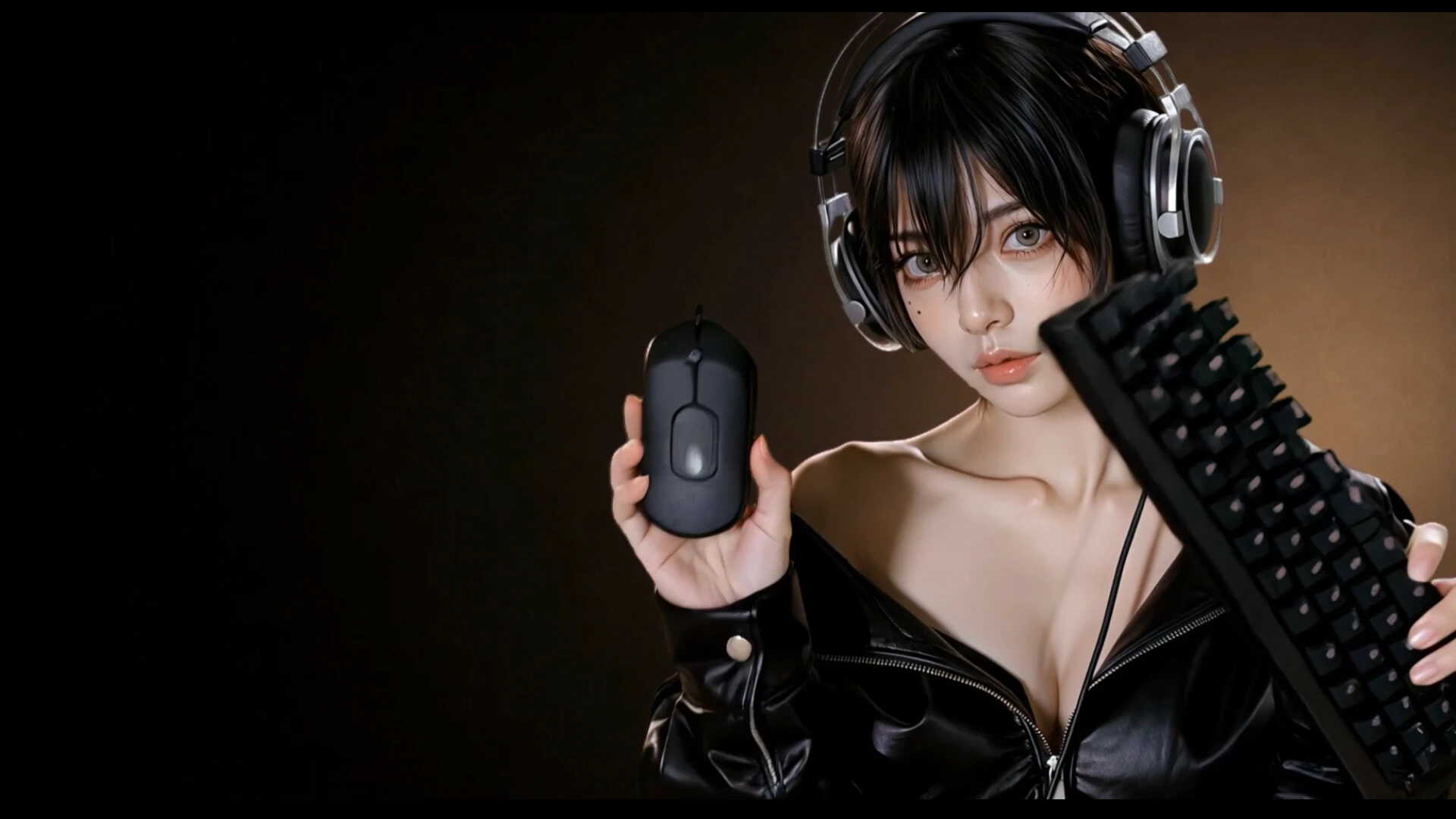

With her by your side, your desktop never has to feel lonely again.
Whether you're working, browsing the web, watching videos, playing games, or simply leaving your PC on, she'll quietly stay there on your desktop.
She doesn't constantly demand your attention.
But she does notice what you're doing.
Someone You'll Want to Keep on Your Desktop
Beautiful, expressive, and always by your side.
From subtle shifts in her gaze and natural body movements to the little expressions she shows without thinking, every animation is carefully designed.
She's more than just an animated image on your desktop.
It feels as though she's actually sharing the same screen with you.
Sometimes, you don't have to do anything at all.
Simply having her there is enough.
Dozens of Situations, Different Reactions
All kinds of things happening on your desktop can catch her attention.
Different actions and different moments can bring out different reactions.
She Keeps an Eye on Your Mouse
Move your mouse around the screen and her gaze and movements may follow.
Try clicking around and see how she reacts.
When You Play, She Plays Too
Start a game, and she may get ready for a gaming session of her own.
Headset on, keyboard and mouse ready — she'll get into the game right alongside you.
When You Watch, She Watches With You
Put on a video you like, and she may settle in to watch with you.
Sometimes, she'll even bring a snack.
These are only a few of her many reactions.
The longer she's around, the more little surprises you'll discover on your desktop.
She'll Help You Keep Track of What Matters
She doesn't just react to what you're doing.
When there's something worth noticing, she'll let you know in her own way.
Time's Up
When it's time to stop or take a break, she'll give you a reminder.
Download Complete
When a download you've been waiting for finishes, she'll let you know that it's ready.
You Have an Unread Message
Still have a new message waiting for you?
She'll bring it to your attention so you don't forget to check it.
Let her help you keep an eye on the things that matter.
Connect Your AI Assistant
If you already use OpenAI Codex or Anthropic Claude Code, you can connect it to Desktop Muse and talk to the character through your microphone. Desktop Muse can act as a conversational interface, and with local desktop control enabled, it can also be used as an agent for supported PC tasks.
Voice output uses Windows TTS by default. For more natural speech, you can optionally connect ElevenLabs or OpenAI TTS using your own API credentials.
Important: Never share your API keys with anyone. Keep them private and secure.
Setup
Install OpenAI Codex or Anthropic Claude Code.
Sign in to the service you installed.
Launch Desktop Muse.
Go to Settings → Advanced → Voice Assistant and turn it ON.
Voice output is set to Windows TTS by default. To use ElevenLabs or OpenAI TTS, enter your own API key and configure the voice / Voice ID required by the selected provider.
If you want to use agent features, turn Local Desktop Control ON.
Press Ctrl + Alt + Space, or double-click the character, to enter voice input mode.
Enabling Local Desktop Control allows the connected agent to interact with supported functions on your PC. Only enable it when you want to use agent features.
Your Desktop Doesn't Have to Feel Lonely Anymore
No complicated controls.
No need to constantly interact with her.
Just start the program and let her stay on your desktop.
With her there, your desktop never has to feel lonely again.
- Если не установлен Steam клиент, скачайте его для Windows (клиент также доступен на Mac и Linux) и установите.
- Запустите Steam, зайдите в свой аккаунт или зарегистрируйте новый, если у вас его еще нет.
- При оформлении заказа, предоставьте ссылку на свой профиль в Steam или ваш SteamID состоящий из 18 цифр (765***).
- Ожидайте приглашения от нашего бота (если у вас аккаунт с ограниченными правами) или добавьте бота в друзья (ссылка на бота будет предоставлена после успешной оплаты).
- После того, как вы добавите нашего бота в друзья, игра автоматически (время ожидания обычно составляет не более 5-30 секунд) будет отправлена вам в виде подарка (гифта).
- Примите подарок, добавьте в Библиотеку и нажмите «Играть».

















и мы вам напишем, если цена на этот товар снизится