
Если у Вас не отправляются сообщения - почистите cookie в браузере
и авторизуйтесь заново :)
Обзоры в Steam
Kyoko Saigetsu
Рекомендую
Опубликовано: 05 июл в 11:31
буквально продажа фпс в стиме
Yevhenii
Рекомендую
Опубликовано: 26 июл в 16:30
Отличная программа о которой в детстве я мог только мечтать.
▲▼Adrewertr▼▲
Рекомендую
Опубликовано: 10 июл в 22:42
Отличное решение, чтобы выровнять fps
sotth
Рекомендую
Опубликовано: 02 июл в 17:39
YES - If you want smooth gameplay
NO - If you want low latency in the game
Blufferr
Рекомендую
Опубликовано: 30 июл в 15:22
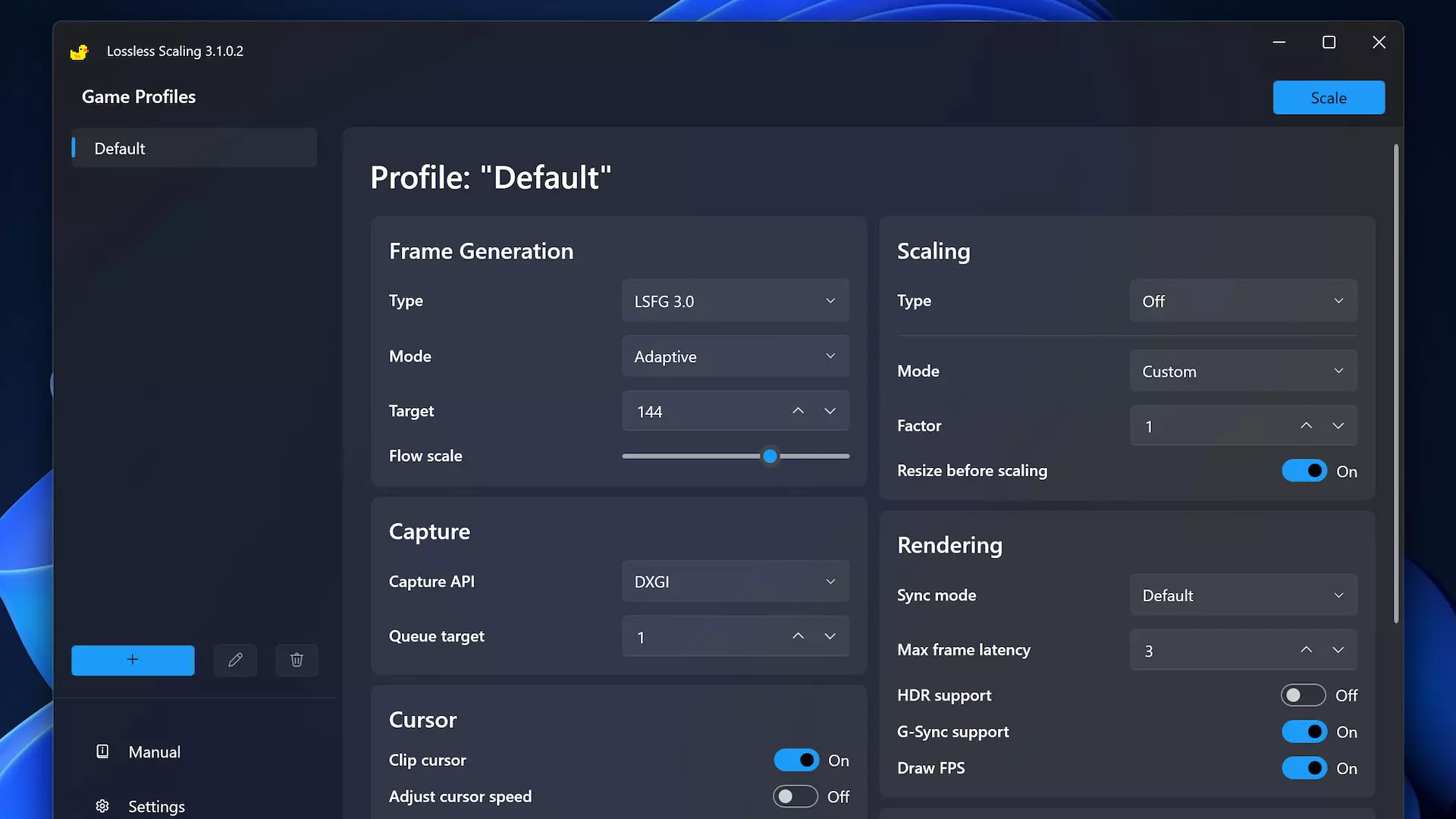
Hello everyone, this will be a review of the lossless scaling application for beginners. And I will also show you the best settings. - Profile Default - in the type you should set LSFG 3.1 at the moment. Now I will tell you the difference between the adaptive mod and fixed, the adaptive mod targets an integer number of fps. that is, you can set, for example, 144 fps and you will have 144 fps in the game. and the other type "fixed" is better to set to 2, because if on 1 there will be a small. Hello everyone, this will be a review of the lossless scaling application for beginners. And I will also show you the best settings. - Profile Default - in the type you should set LSFG 3.1 at the moment. Now I will tell you the difference between the adaptive mod and fixed, the adaptive mod targets an integer number of fps. that is, you can set, for example, 144 fps and you will have 144 fps in the game. and the other type "fixed" is better to set to 2, because if on 1 there will be a small. fps increase and small delay, and if you put 3 or more then there will be a lot of fps but a big delay between actions, that is, input lag. Now the Scaling section - for games it is better to set the FSR type, if you want a good picture, for example 4k, then set anime4k, but I advise you to leave it on FSR. Mode - it is better to set it in the first auto, and in the second by choice, if you play in full screen (16:9) set fullscreen, and if with a custom. resolution, then aspect ratio! Capture section - there set WGC in capture API, and in queue target always set 1. Now Rendering - Now it will be very important in your choice, in sync mode ALWAYS set off (allow tearing) many do not know about this, but this setting reduces the delay very much. Next Max Frame Latency: 3. and hdr support / g - sync support / Draw Fps set at your discretion, I only have draw fps enabled. Next, do not touch the Cursor and Crop input sections, we do not need them. Next, GPU and Display: Preffered GPU, you can have your video card there and something else, always take your video card, for example, Nvidia, Output Display: Set to Auto
Well, that's all, here I told you the important settings and features of this program, don't be afraid to buy it and I also ask you to support me with reactions ❤️
буквально продажа фпс в стиме
Отличная программа о которой в детстве я мог только мечтать.
Отличное решение, чтобы выровнять fps
YES - If you want smooth gameplay NO - If you want low latency in the game
Hello everyone, this will be a review of the lossless scaling application for beginners. And I will also show you the best settings. - Profile Default - in the type you should set LSFG 3.1 at the moment. Now I will tell you the difference between the adaptive mod and fixed, the adaptive mod targets an integer number of fps. that is, you can set, for example, 144 fps and you will have 144 fps in the game. and the other type "fixed" is better to set to 2, because if on 1 there will be a small. Hello everyone, this will be a review of the lossless scaling application for beginners. And I will also show you the best settings. - Profile Default - in the type you should set LSFG 3.1 at the moment. Now I will tell you the difference between the adaptive mod and fixed, the adaptive mod targets an integer number of fps. that is, you can set, for example, 144 fps and you will have 144 fps in the game. and the other type "fixed" is better to set to 2, because if on 1 there will be a small. fps increase and small delay, and if you put 3 or more then there will be a lot of fps but a big delay between actions, that is, input lag. Now the Scaling section - for games it is better to set the FSR type, if you want a good picture, for example 4k, then set anime4k, but I advise you to leave it on FSR. Mode - it is better to set it in the first auto, and in the second by choice, if you play in full screen (16:9) set fullscreen, and if with a custom. resolution, then aspect ratio! Capture section - there set WGC in capture API, and in queue target always set 1. Now Rendering - Now it will be very important in your choice, in sync mode ALWAYS set off (allow tearing) many do not know about this, but this setting reduces the delay very much. Next Max Frame Latency: 3. and hdr support / g - sync support / Draw Fps set at your discretion, I only have draw fps enabled. Next, do not touch the Cursor and Crop input sections, we do not need them. Next, GPU and Display: Preffered GPU, you can have your video card there and something else, always take your video card, for example, Nvidia, Output Display: Set to Auto Well, that's all, here I told you the important settings and features of this program, don't be afraid to buy it and I also ask you to support me with reactions ❤️